The problems this solution can solve
Remote connections are not limited by distance; this is achieved through tailscale, but network stability must be ensured.
Free, high-definition streaming, achieved through sunshine and moonlight.
Security: in this solution, security means that the remote computer’s screen can stay black during streaming, which effectively protects privacy; this is achieved by using ParsecVDisplay to trick the computer into adding a virtual display.
1. Basic Principles
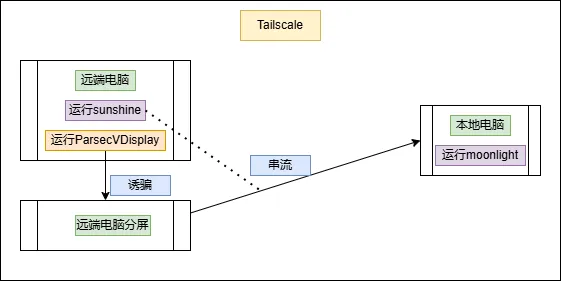
From the tools above, the implementation principle can be roughly inferred. Streaming refers to the process of transmitting a remote computer’s desktop environment, application interfaces, audio, and mouse and keyboard input to another computer or device in real time. In this solution, ParsecVDisplay is used to trick the remote end into creating a virtual display, and the virtual display is then streamed to the local computer; the streaming is implemented through sunshine and moonlight. By setting the computer to display only on the virtual display, the main screen can stay black the entire time, protecting privacy. Then tailscale brings the two devices into the same virtual LAN, enabling remote connections that are not limited by distance.
The basic principle is shown in the figure below (drawn rather roughly).
Compared with existing methods, this one is more troublesome to set up, but the fact that it is free, high-definition, and secure is still very tempting.
At the same time, this solution has a truly fatal drawback, caused by a bug in the virtual display tool. Strict steps must be followed to prevent accidents from happening.
2. Installing the Tools
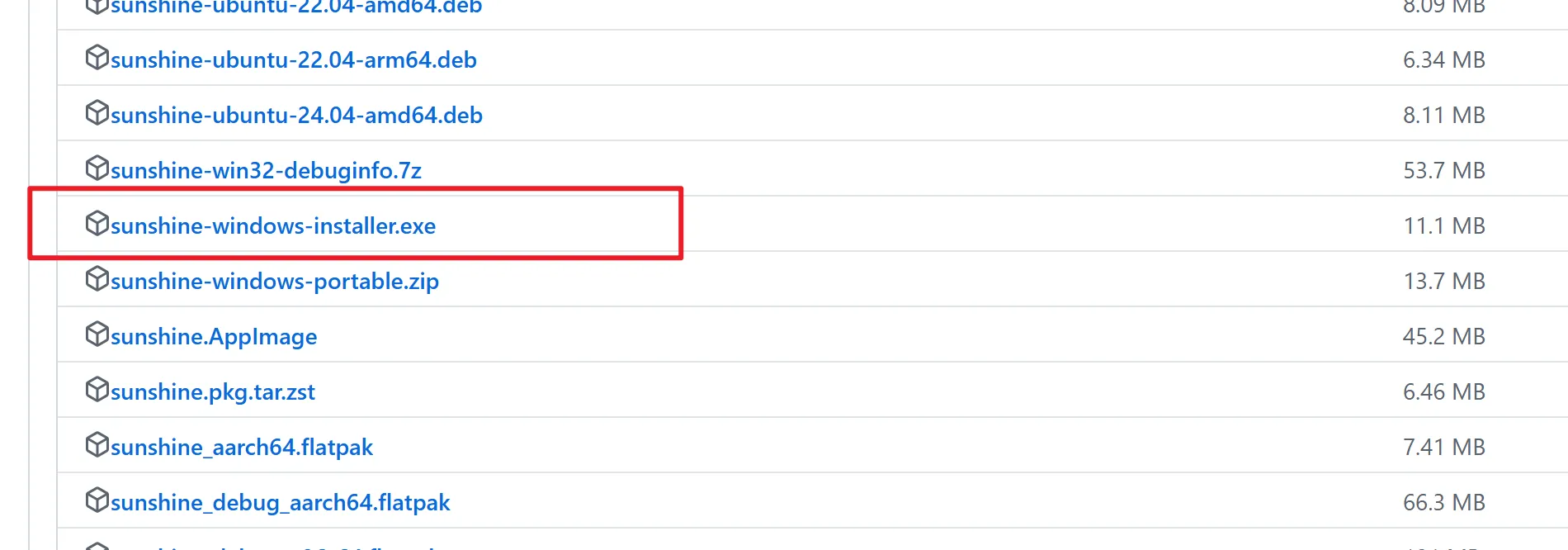
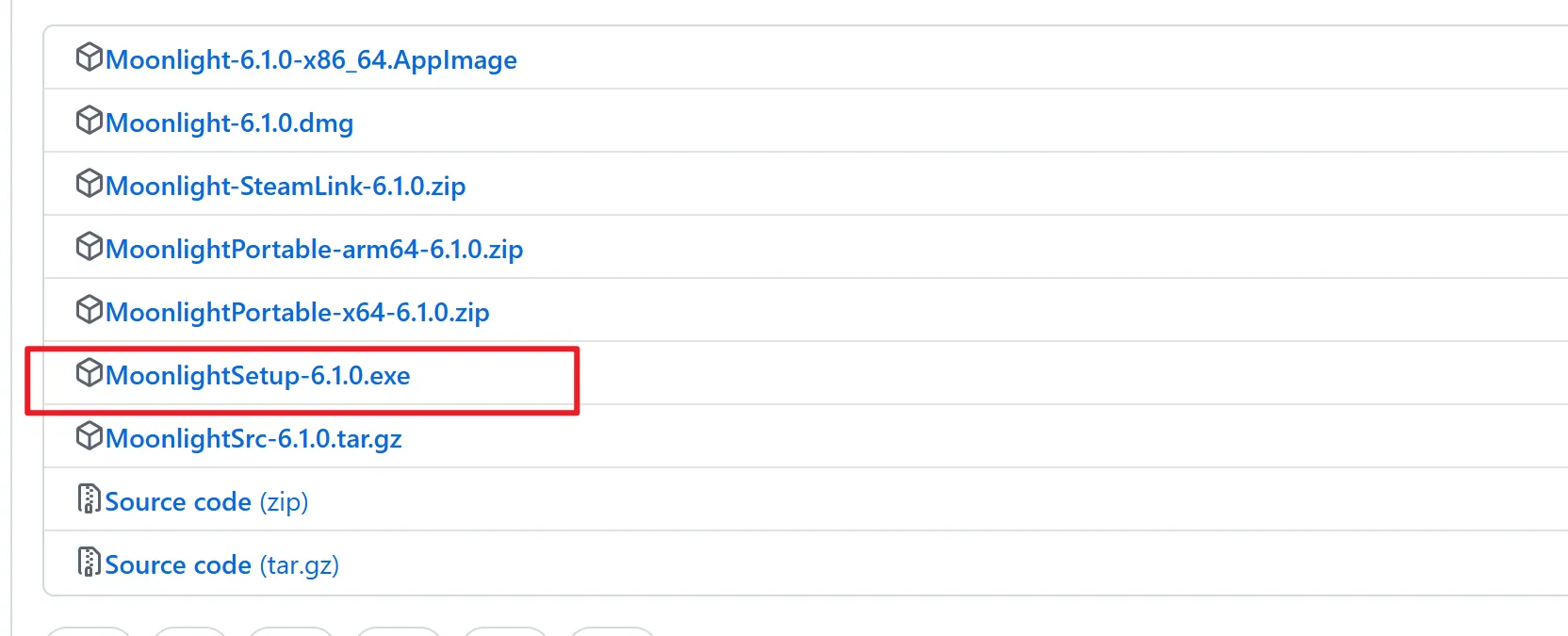
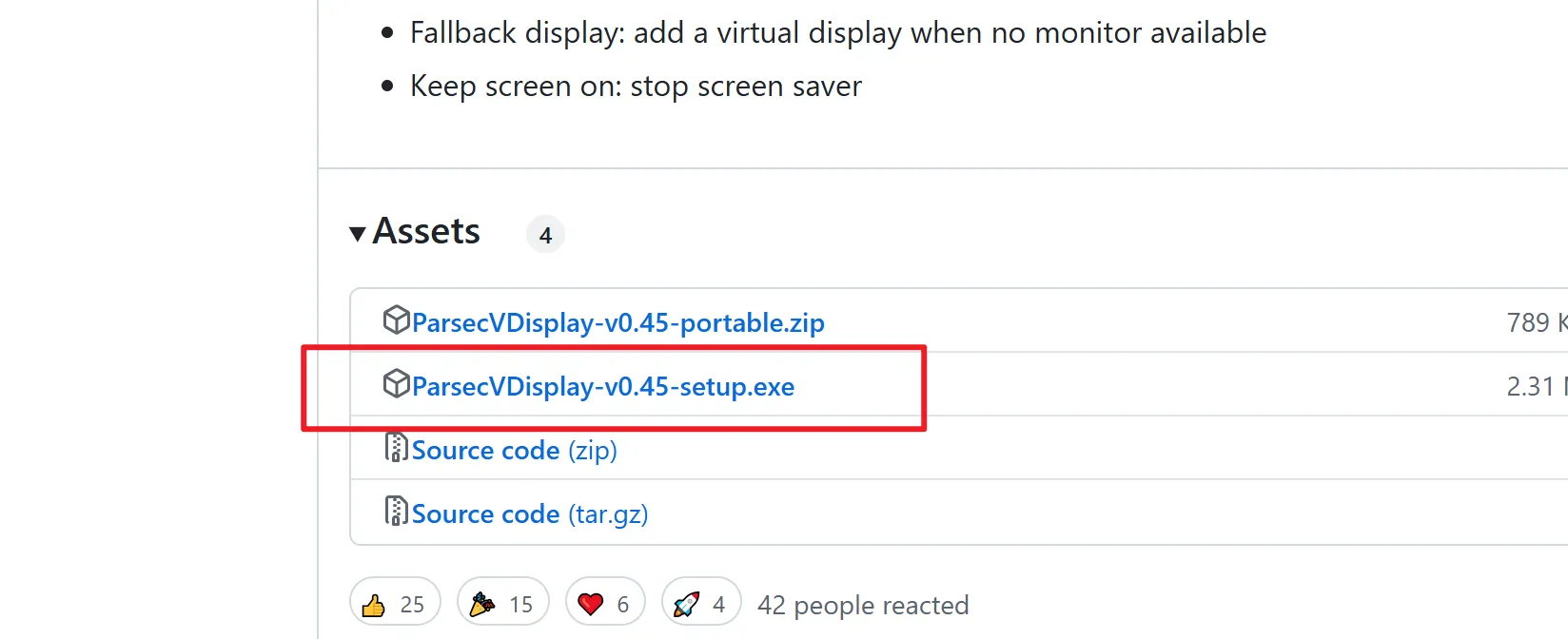
There is nothing special about installing these tools; just follow the steps. You can click the links below to find the tools’ download pages. If running in a Windows environment, you can download the versions shown in the figures; these have been tested and work.
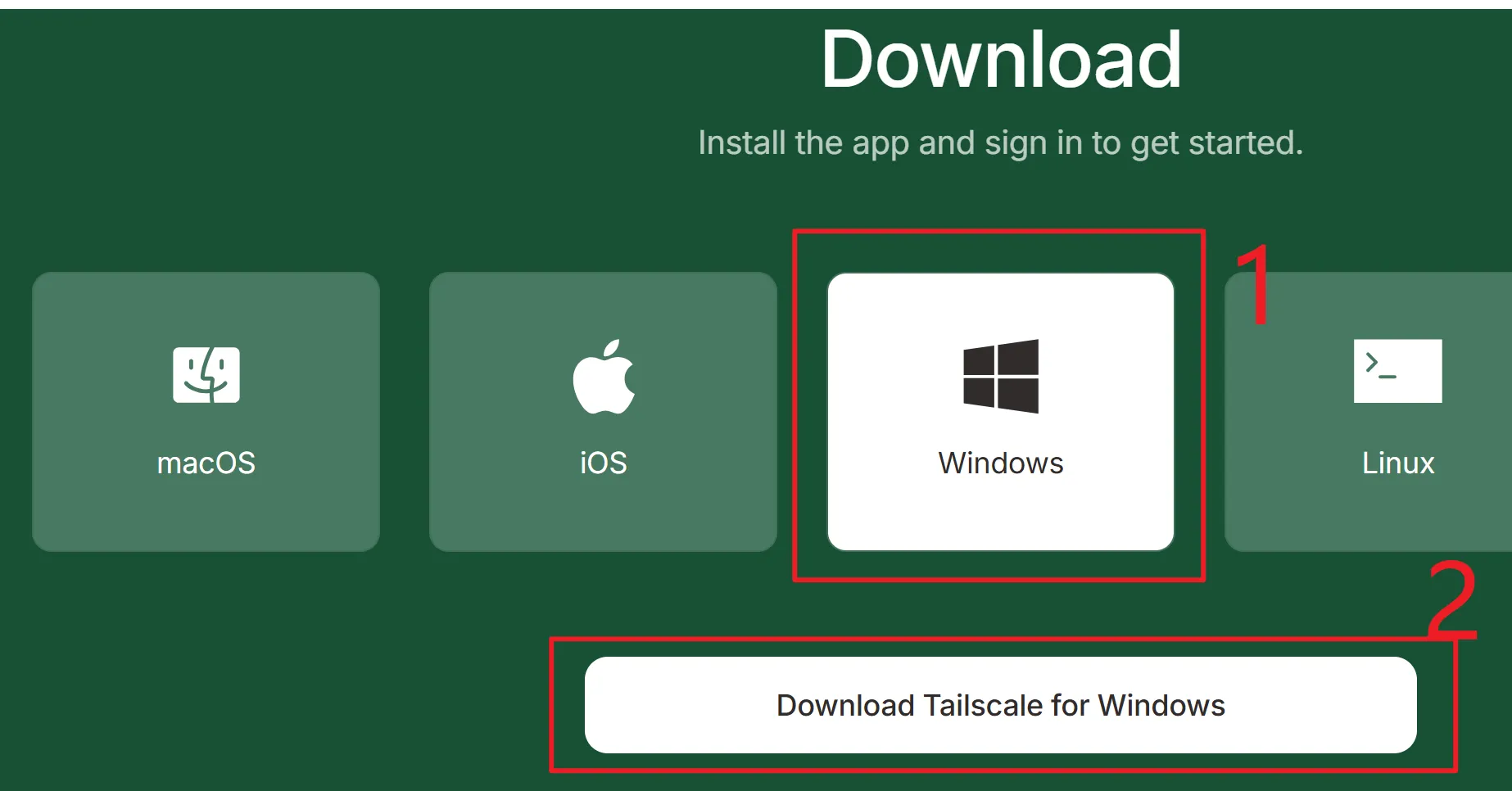
Notes:
- sunshine must be installed on the remote computer.
- moonlight must be installed on the local computer.
- ParsecVDisplay must be installed on the remote computer.
- tailscale must be installed on both computers; after registering, just log in to the same account.
3. Implementation Steps
After the tools are installed, we can achieve basic streaming; then comes the implementation of our solution.
3.1 Connecting to the Computer Remotely via moonlight
Open moonlight, click Add PC in the top-right corner, then enter the remote host’s IP address in the box.
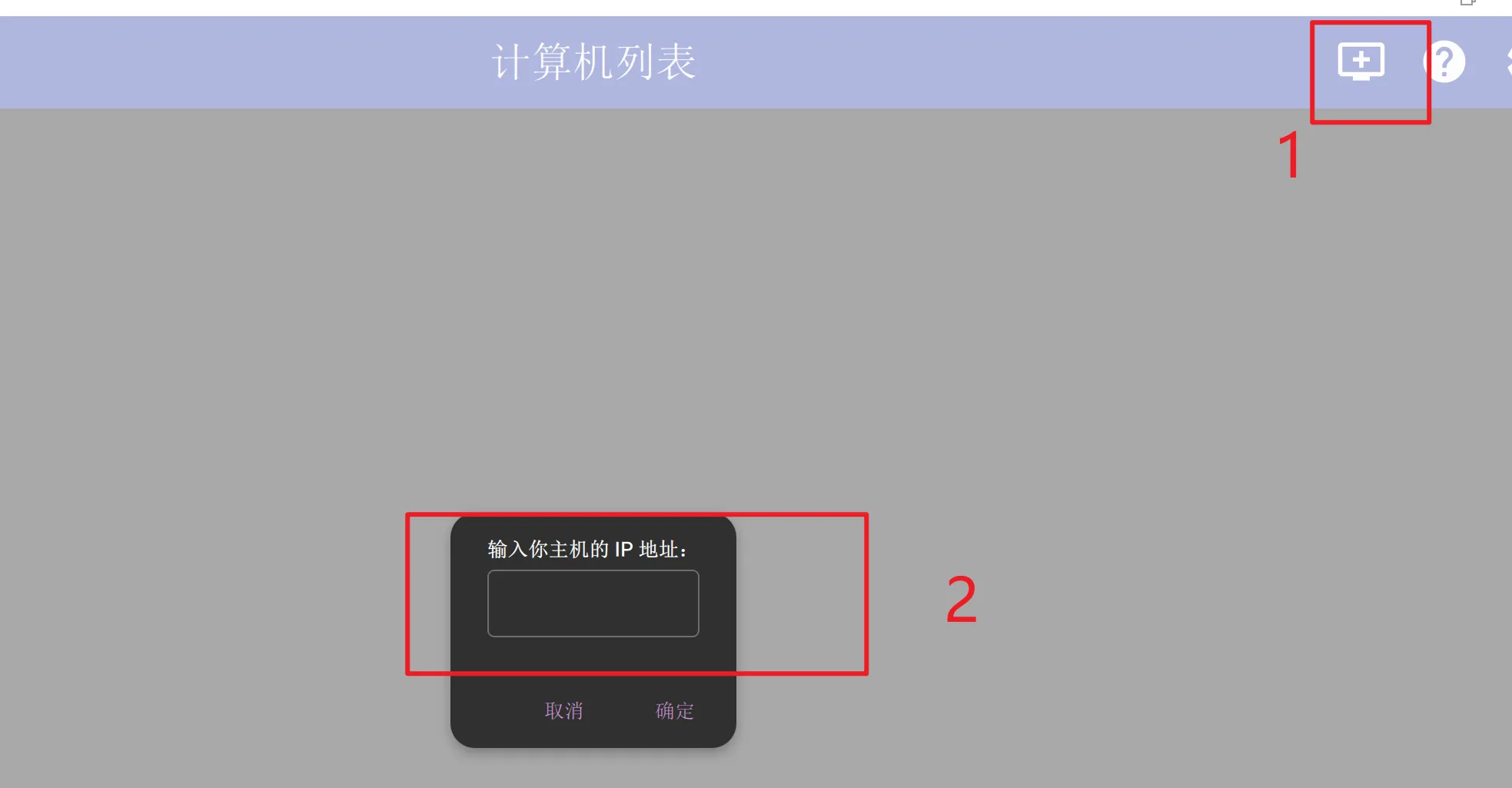
As for getting the IP address: press Win+R, type cmd, press Enter, type ipconfig, press Enter, and find the IPv4 address.
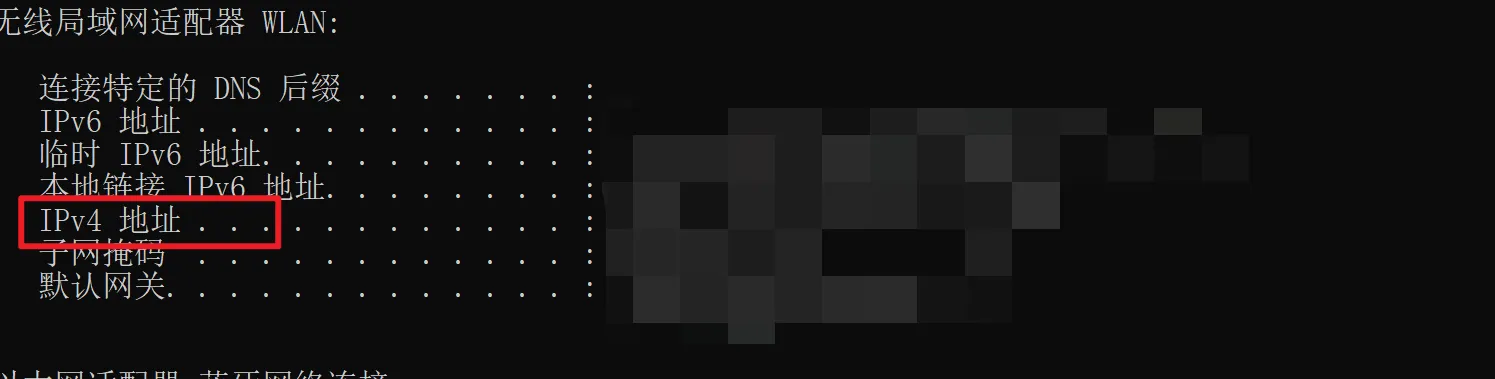
Also, to achieve a better remote connection, it is recommended to use the address assigned by tailscale after installation; this makes the remote connection more stable. Once the computer leaves the LAN, its IP address stops working, and it will automatically switch to another address; this causes the remote connection to fail.
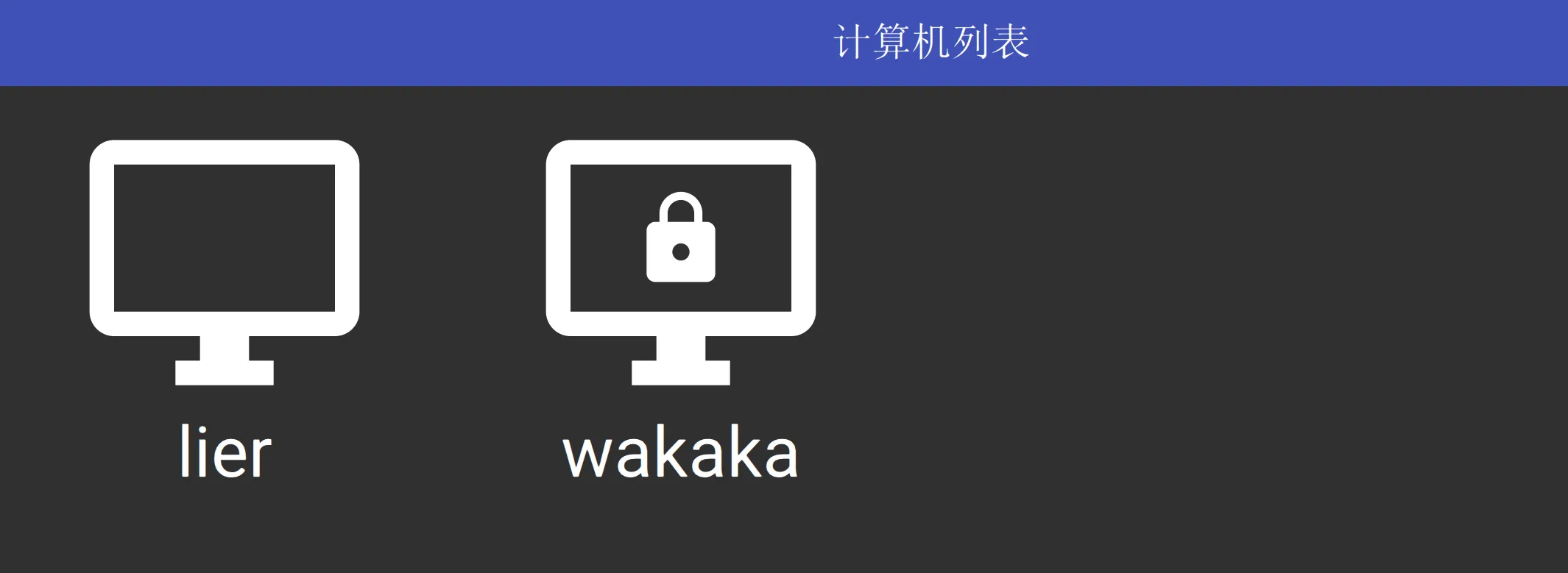
Click the computer you want to connect to in the computer list. The first time, you need to enter a verification code; after seeing the code, click the box that pops up from sunshine on the remote host and enter it there.
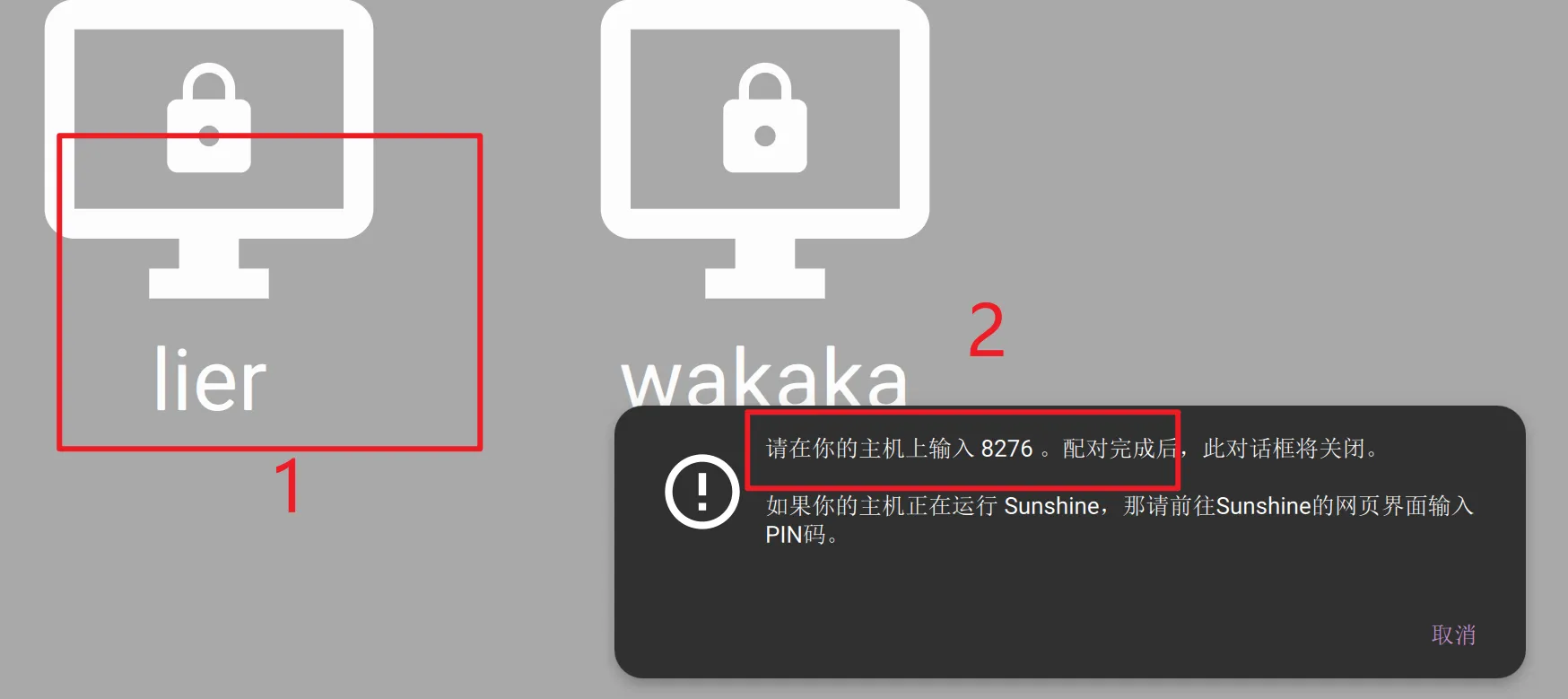
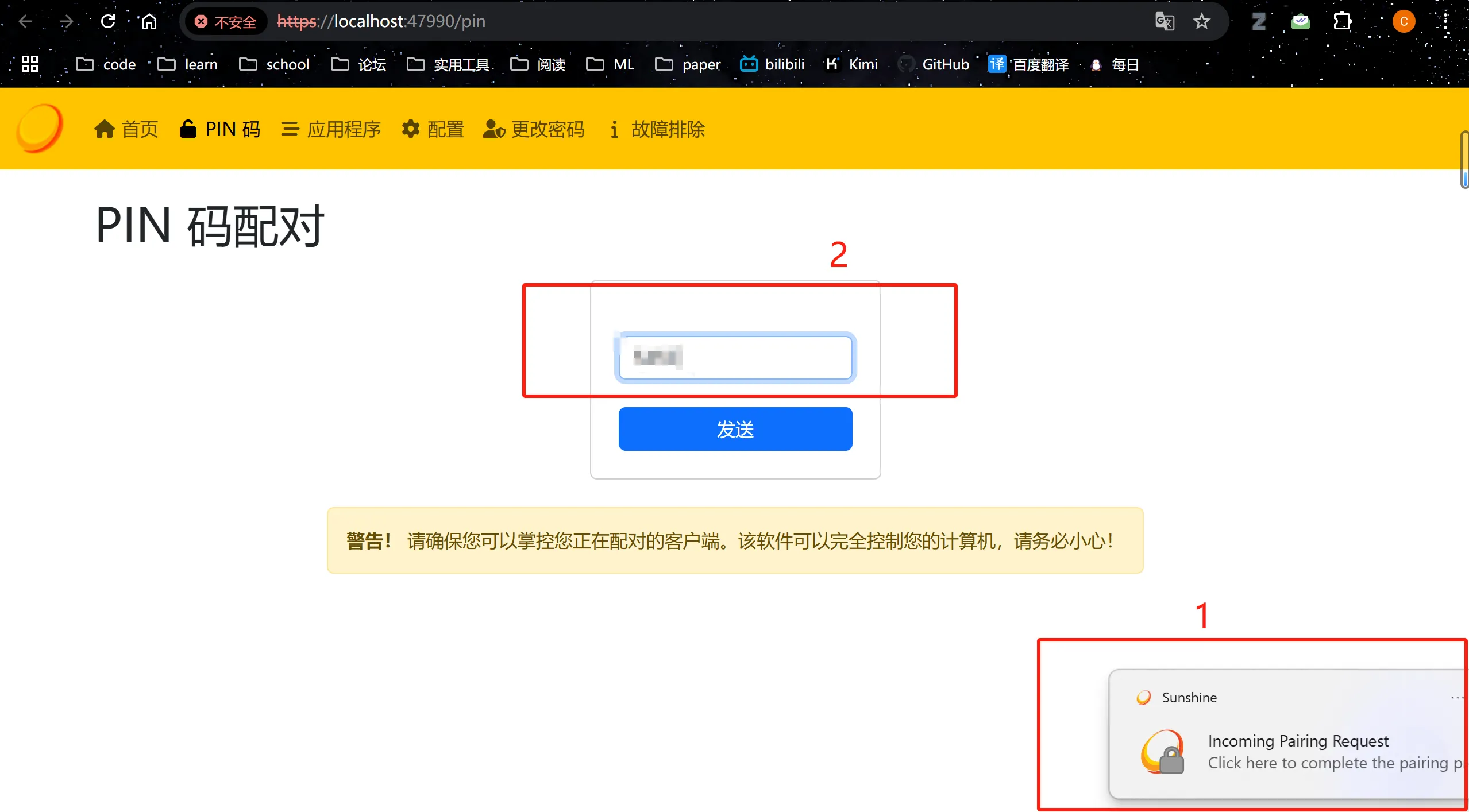
Once it is entered, the most basic remote connection to the computer is working.
Setting Up the Virtual Display
While keeping the remote connection active, open ParsecVDisplay and add a virtual display in the bottom-right corner, but be sure to remember the display’s name.
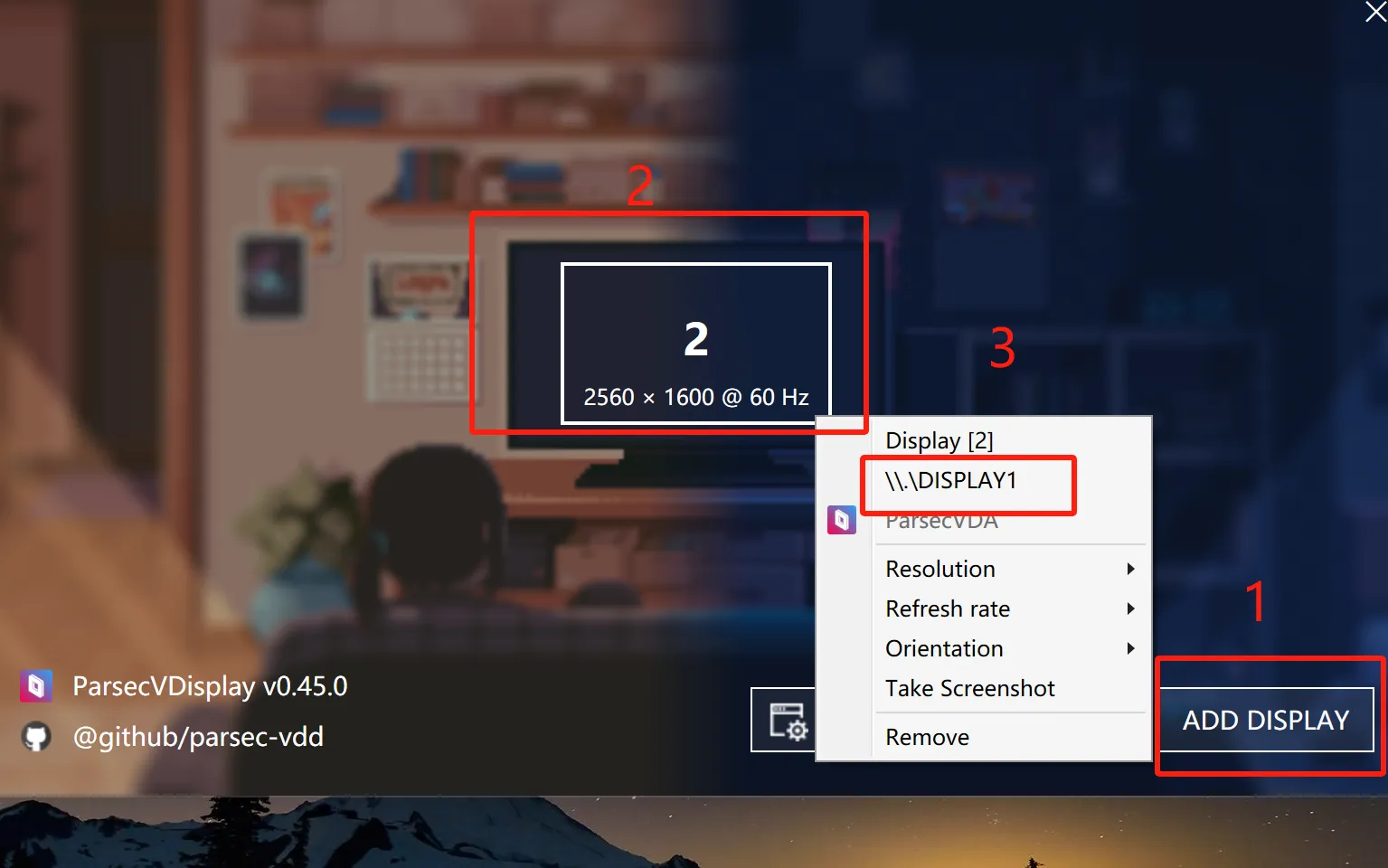
Note that the display name will change; this is also why it is necessary to follow these steps.
Setting sunshine to Stream the Virtual Display
Open sunshine.
In Configuration, select Audio/Video, change the Output Name to the name of the virtual display set up earlier, then restart sunshine.
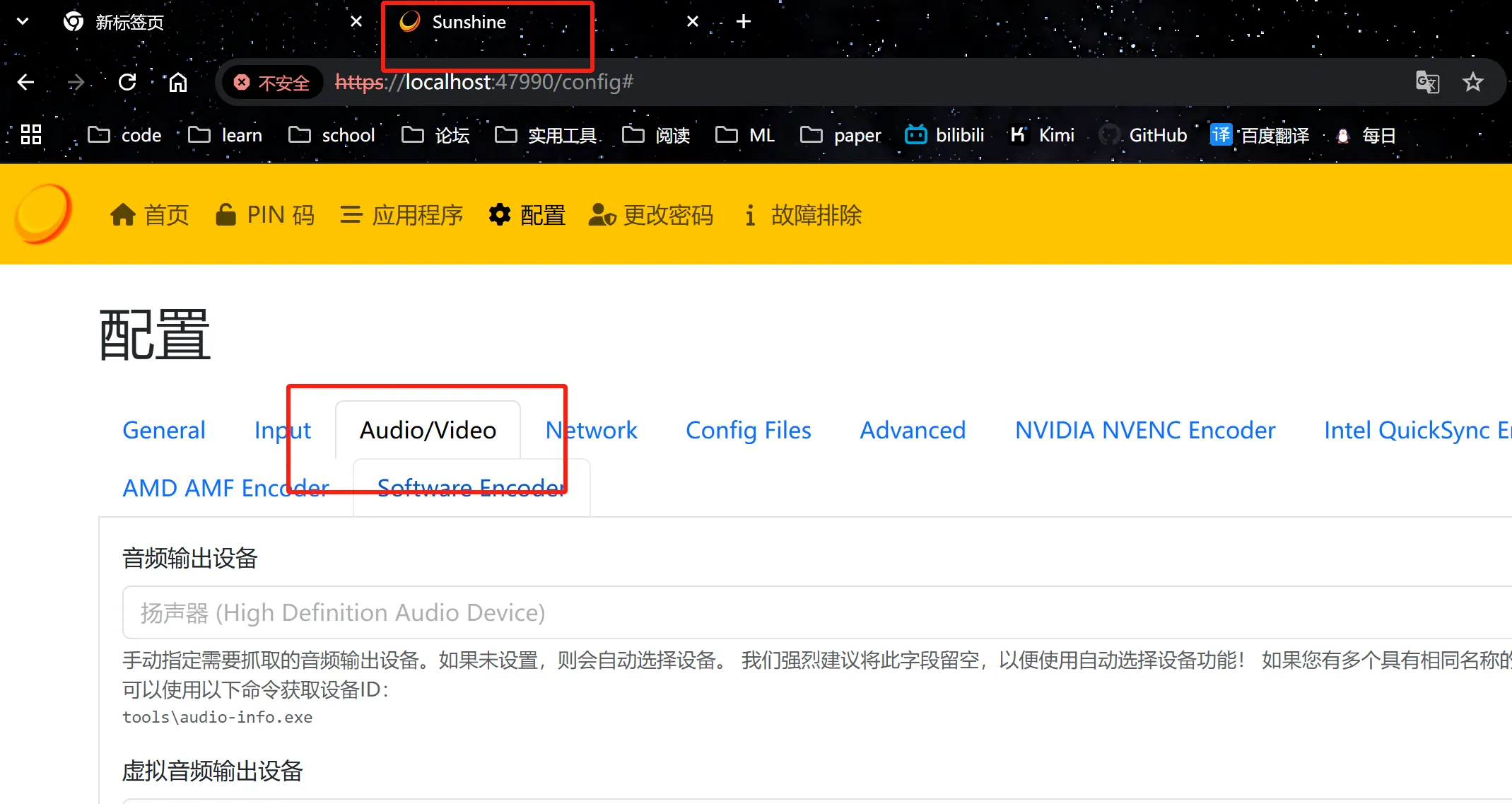
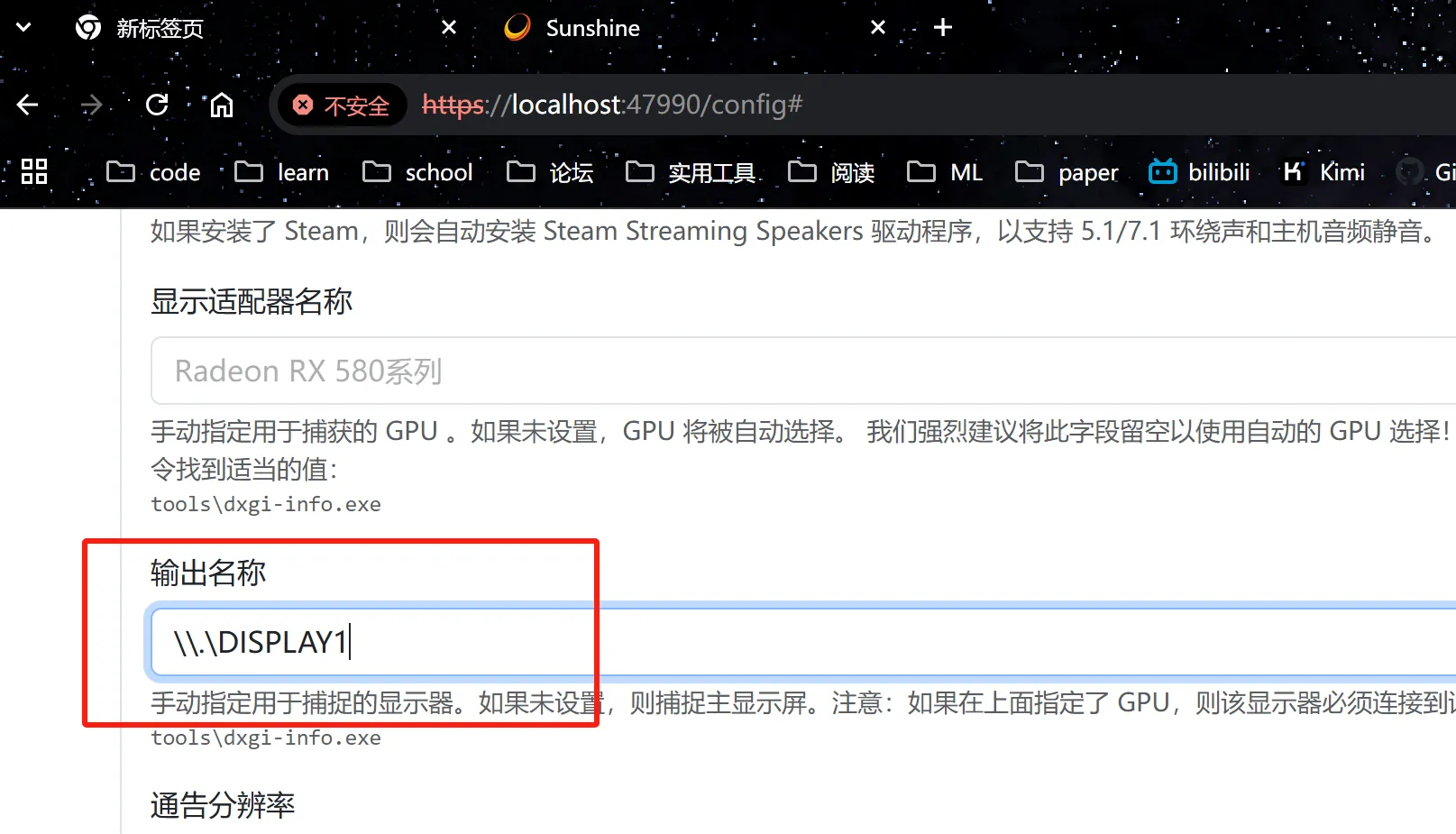
The connection will drop once at this point.
Reconnecting to the Computer via moonlight
Wait for the exclamation mark on the remote computer to disappear and the connection to return to normal, then connect to the remote computer.
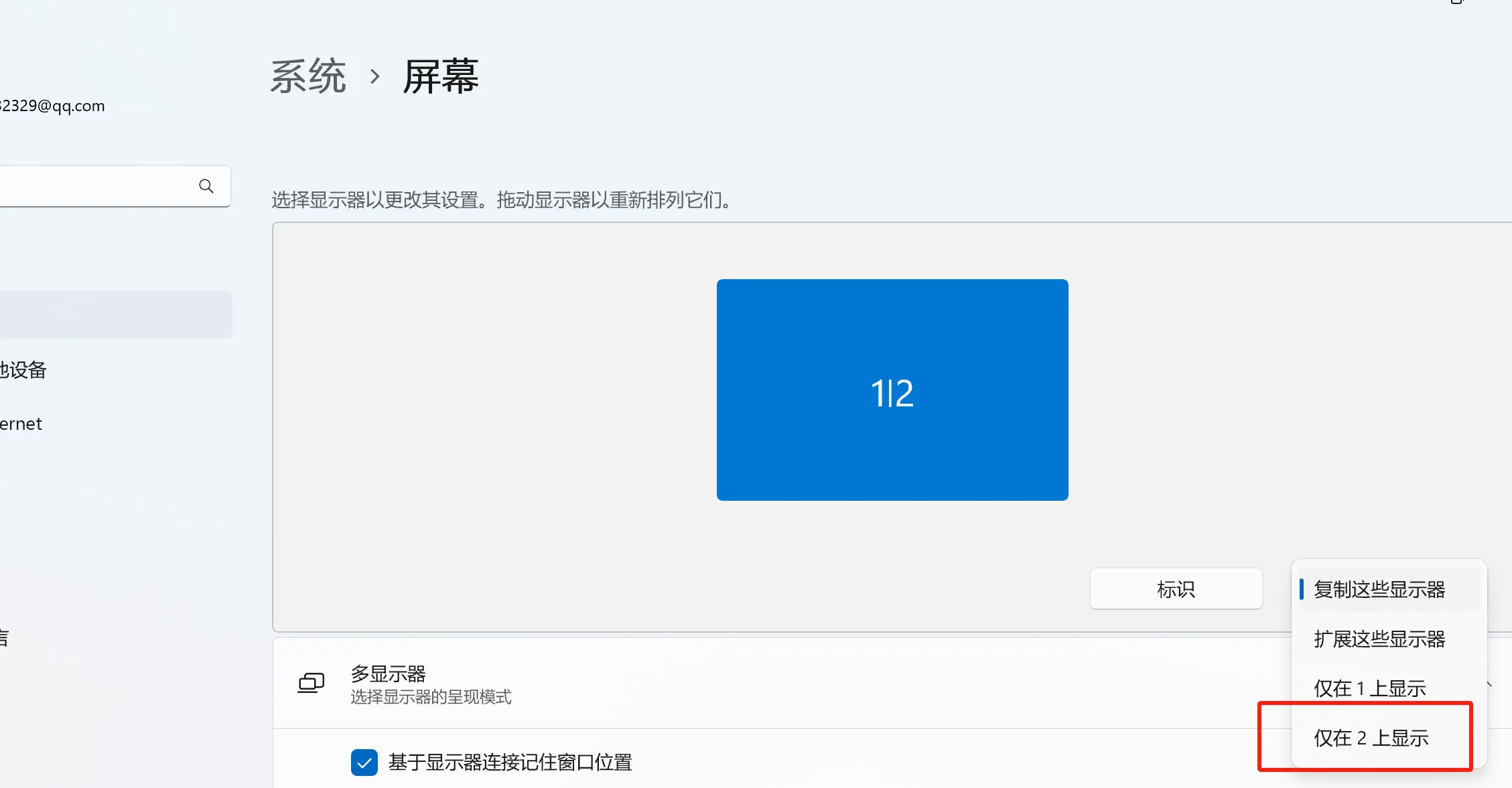
Setting It to Show Only on Display 2
In Settings, set the display to show only on display 2, and then the remote computer’s screen can stay black the entire time.
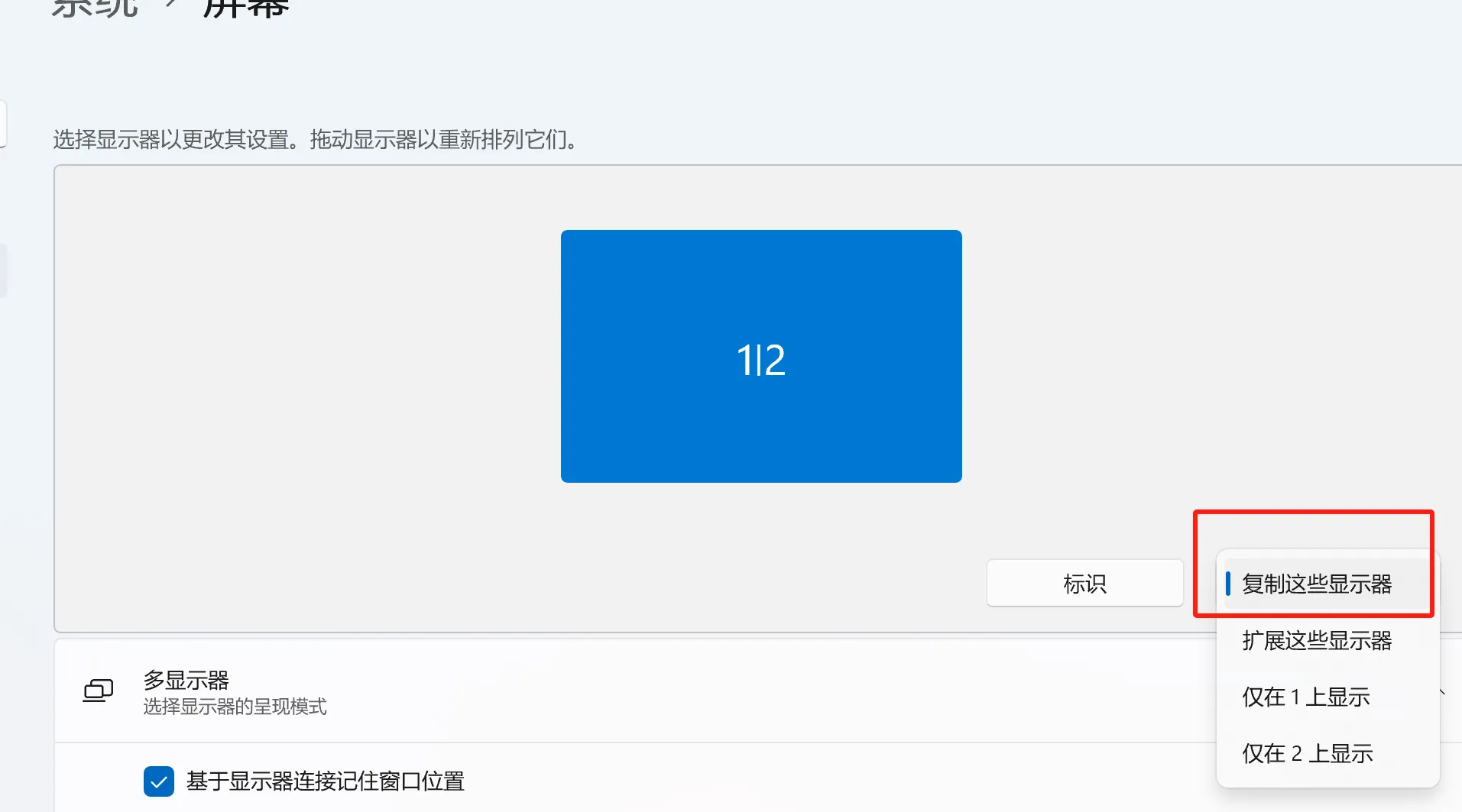
Ending the Connection
First, in Settings, change the original “Show only on 2” setting to “Duplicate these displays”, then close ParsecVDisplay, then lock the remote computer to ensure it can connect normally next time.
After that, just use ctrl+alt+shift+Q to exit moonlight.
Only by following the steps above can a stable connection be achieved; otherwise the virtual display tool will randomly change the display name, which is what causes accidents. You can experiment with other virtual display tools. Also, for tailscale configuration and installation, refer to this tutorial.
Summary
The inspiration for this came from a chat with my senior fellow student. As it was my first contact with remote connections, I found it very interesting, and then I had the idea of whether privacy could be protected; I did not find a suitable solution online. So I asked my senior, who said, “Can’t it be done? Streaming is essentially screen mirroring—doesn’t it require the screen to be on?” Then I remembered that it could be done with the help of a virtual display tool, and it only succeeded after some testing. Personally, I find it quite interesting. There are quite a few limitations and it fails easily, but it is also very practical, isn’t it?