
A collection of common PC shortcuts I tend to forget, kept here for later reference.
Windows
Terminal setup
Windows terminal setup reference
Basic environment
# 安装 PowerShell 7(管理员)
winget install Microsoft.PowerShell

# 创建配置文件
if (!(Test-Path $PROFILE)) { New-Item -Path $PROFILE -ItemType File -Force }
notepad $PROFILE
Core settings
# 历史预测与提示
Set-PSReadLineOption -PredictionSource History
Set-PSReadLineOption -PredictionViewStyle InlineView

# 快捷键:Ctrl+A/E 跳转行首行尾
Set-PSReadLineKeyHandler -Key Ctrl+a -Function BeginningOfLine
Set-PSReadLineKeyHandler -Key Ctrl+e -Function EndOfLine

# 上下箭头匹配前缀
Set-PSReadLineKeyHandler -Key UpArrow -Function HistorySearchBackward
Set-PSReadLineKeyHandler -Key DownArrow -Function HistorySearchForward

# 默认 UTF-8
$PSDefaultParameterValues['*:Encoding'] = 'UTF8'
[Console]::OutputEncoding = [System.Text.Encoding]::UTF8
Install tools
# 安装(PowerShell 7 中执行)
winget install lsd
winget install sharkdp.bat --name bat

# 若提示找不到命令,修复 Path(执行后重启终端)
$lsdPath = "${env:LOCALAPPDATA}\Microsoft\WinGet\Packages\lsd-rs.lsd_Microsoft.Winget.Source_8wekyb3d8bbwe"
$batPath = (Get-ChildItem "${env:LOCALAPPDATA}\Microsoft\WinGet\Packages" -Recurse -Filter "bat.exe" | Select-Object -First 1).DirectoryName
$userPath = [Environment]::GetEnvironmentVariable("Path", "User")
[Environment]::SetEnvironmentVariable("Path", "$userPath;$lsdPath;$batPath", "User")
Set aliases
function ls { lsd $args }
function ll { lsd -la $args }
function la { lsd -a $args }
function cat { bat -p $args }      # 纯文本兼容
function catl { bat $args }         # 带高亮行号
Verification commands
lsd --version        # 显示版本即成功
bat README.md        # 高亮显示文件
Get-PSReadLineOption | Select-Object PredictionSource  # 检查预测开启
Mac
Delete
- Empty the Trash:
Cmd + Shift + Delete - Delete directly, bypassing the Trash:
Option + Cmd + Delete - Delete backwards:
Fn + Delete
Command-line suggestion plugin
# 安装插件
mkdir -p ~/.oh-my-zsh/custom/plugins

git clone https://github.com/zsh-users/zsh-autosuggestions \
  ~/.oh-my-zsh/custom/plugins/zsh-autosuggestions

git clone https://github.com/zsh-users/zsh-syntax-highlighting \
  ~/.oh-my-zsh/custom/plugins/zsh-syntax-highlighting

# 注册插件生效
code ~/.zshrc

# 找到 plugins=()
# 改成 plugins=(git zsh-autosuggestions zsh-syntax-highlighting)

source ~/.zshrc # 配置生效
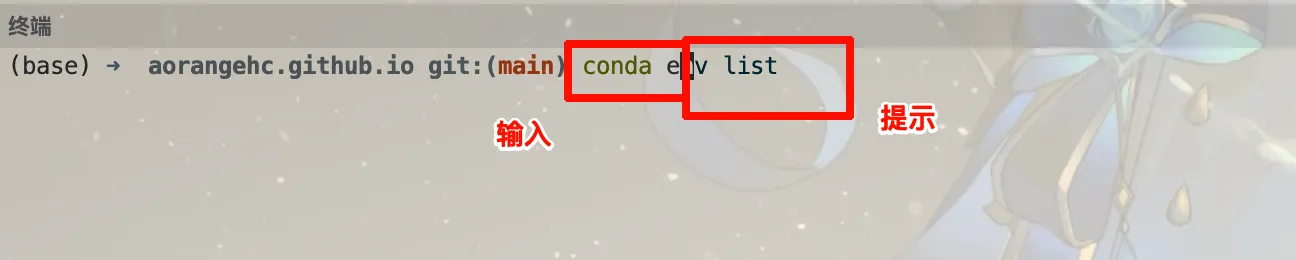
Jump to the start or end of a command line
The default shortcut for the start of a line is:
Ctrl + AThe default shortcut for the end of a line is:
Ctrl + ELinux
Terminal shortcuts
The following use Bash/Readline’s default Emacs bindings. Terminal applications, shells, and custom settings may override them; desktop shortcuts are a separate matter.
| Shortcut | Action |
|---|---|
| Ctrl + A / E | Move to the start / end of the line |
| Ctrl + U / K | Delete the line before / after the cursor |
| Ctrl + W | Delete the preceding whitespace-delimited word |
| Alt + B / F | Move backward / forward one word |
| Ctrl + Y | Insert the most recently deleted text |
| Ctrl + R | Search command history backwards |
| Ctrl + L | Redraw the screen and keep the current input visible |
After finding a command with Ctrl+R, leave search mode with an arrow key and review or edit it before pressing Enter, especially for deletion or remote operations.
Interrupt, suspend, and resume
- Ctrl+C usually interrupts the foreground program.
- Ctrl+Z usually suspends the foreground job; it does not terminate it. Inspect jobs with
jobsand usefgto return one to the foreground. - Ctrl+D usually sends EOF at an empty prompt and may exit the shell. With existing input, it may delete the character under the cursor.
Behavior depends on how the terminal and program handle the relevant signals. Vim, interactive REPLs, and other applications have their own bindings.
Useful inspection commands
pwd                 # 当前目录
ls -lah             # 文件、权限和大小
less app.log        # 分页看日志,q 退出
tail -n 50 app.log   # 最后 50 行
tail -f app.log      # 持续看新增日志,Ctrl+C 结束
jobs                # 当前 Shell 的后台与挂起任务
In Bash, use bind -P to inspect key bindings. Start with this small group of shortcuts rather than memorizing every combination at once.
Reference:GNU Bash Readline documentation。