
よく忘れる PC のショートカットを、後から確認できるようにまとめます。
Windows
ターミナルの設定
Windows ターミナルの設定メモ
基本環境
# 安装 PowerShell 7(管理员)
winget install Microsoft.PowerShell

# 创建配置文件
if (!(Test-Path $PROFILE)) { New-Item -Path $PROFILE -ItemType File -Force }
notepad $PROFILE
主要な設定
# 历史预测与提示
Set-PSReadLineOption -PredictionSource History
Set-PSReadLineOption -PredictionViewStyle InlineView

# 快捷键:Ctrl+A/E 跳转行首行尾
Set-PSReadLineKeyHandler -Key Ctrl+a -Function BeginningOfLine
Set-PSReadLineKeyHandler -Key Ctrl+e -Function EndOfLine

# 上下箭头匹配前缀
Set-PSReadLineKeyHandler -Key UpArrow -Function HistorySearchBackward
Set-PSReadLineKeyHandler -Key DownArrow -Function HistorySearchForward

# 默认 UTF-8
$PSDefaultParameterValues['*:Encoding'] = 'UTF8'
[Console]::OutputEncoding = [System.Text.Encoding]::UTF8
ツールの導入
# 安装(PowerShell 7 中执行)
winget install lsd
winget install sharkdp.bat --name bat

# 若提示找不到命令,修复 Path(执行后重启终端)
$lsdPath = "${env:LOCALAPPDATA}\Microsoft\WinGet\Packages\lsd-rs.lsd_Microsoft.Winget.Source_8wekyb3d8bbwe"
$batPath = (Get-ChildItem "${env:LOCALAPPDATA}\Microsoft\WinGet\Packages" -Recurse -Filter "bat.exe" | Select-Object -First 1).DirectoryName
$userPath = [Environment]::GetEnvironmentVariable("Path", "User")
[Environment]::SetEnvironmentVariable("Path", "$userPath;$lsdPath;$batPath", "User")
エイリアスの設定
function ls { lsd $args }
function ll { lsd -la $args }
function la { lsd -a $args }
function cat { bat -p $args }      # 纯文本兼容
function catl { bat $args }         # 带高亮行号
確認用コマンド
lsd --version        # 显示版本即成功
bat README.md        # 高亮显示文件
Get-PSReadLineOption | Select-Object PredictionSource  # 检查预测开启
Mac
削除
- ごみ箱を空にする:
Cmd + Shift + Delete - ごみ箱を経由せず削除する:
Option + Cmd + Delete - 後方の文字を削除する:
Fn + Delete
コマンドの候補を表示するプラグイン
# 安装插件
mkdir -p ~/.oh-my-zsh/custom/plugins

git clone https://github.com/zsh-users/zsh-autosuggestions \
  ~/.oh-my-zsh/custom/plugins/zsh-autosuggestions

git clone https://github.com/zsh-users/zsh-syntax-highlighting \
  ~/.oh-my-zsh/custom/plugins/zsh-syntax-highlighting

# 注册插件生效
code ~/.zshrc

# 找到 plugins=()
# 改成 plugins=(git zsh-autosuggestions zsh-syntax-highlighting)

source ~/.zshrc # 配置生效
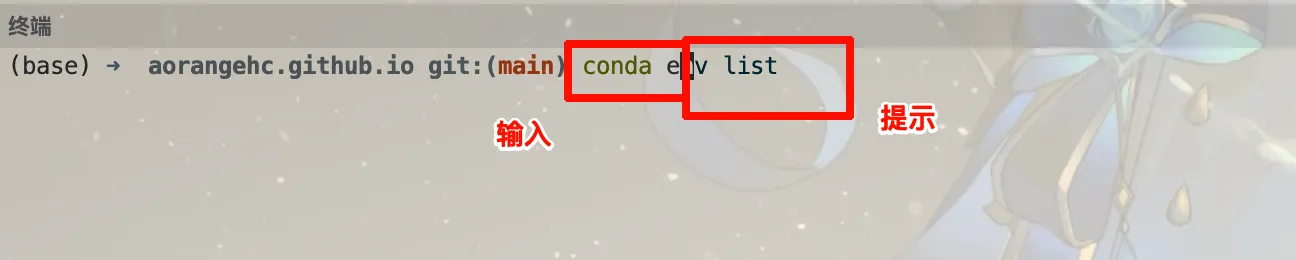
入力行の先頭と末尾へ移動する
行頭へ移動する既定のキー:
Ctrl + A行末へ移動する既定のキー:
Ctrl + ELinux
ターミナルのショートカット
Bash / Readline の既定の Emacs キーバインドを記録します。ターミナル、シェル、独自設定で上書きされる場合があり、デスクトップのキー操作とは別です。
| キー | 動作 |
|---|---|
| Ctrl + A / E | 行頭 / 行末へ移動 |
| Ctrl + U / K | カーソルより前 / 後の行内容を削除 |
| Ctrl + W | 空白で区切られた直前の語を削除 |
| Alt + B / F | 前 / 後の語へ移動 |
| Ctrl + Y | 直近に削除した文字を挿入 |
| Ctrl + R | 履歴を後ろ向きに検索 |
| Ctrl + L | 画面を再描画して現在の入力を見える位置に残す |
Ctrl+R で見つけた命令は、矢印キーで検索を抜け、内容を確認・修正してから実行します。特に削除やリモート操作では、似た命令をすぐ実行しないようにします。
中断、一時停止、再開
- Ctrl+C は通常、前面のプログラムを中断します。
- Ctrl+Z は通常、前面のジョブを一時停止し、終了はしません。
jobsで確認し、fgで前面に戻します。 - Ctrl+D は空の入力で通常 EOF を示し、シェルが終了する場合があります。入力があるときは、カーソル位置の文字を削除する場合があります。
動作は端末とプログラムの信号処理に依存します。Vim や対話型 REPL では、それぞれのキーバインドを使います。
確認用のコマンド
pwd                 # 当前目录
ls -lah             # 文件、权限和大小
less app.log        # 分页看日志,q 退出
tail -n 50 app.log   # 最后 50 行
tail -f app.log      # 持续看新增日志,Ctrl+C 结束
jobs                # 当前 Shell 的后台与挂起任务
Bash では bind -P で現在のバインドを調べられます。最初はこの小さな組だけ覚えれば十分です。